
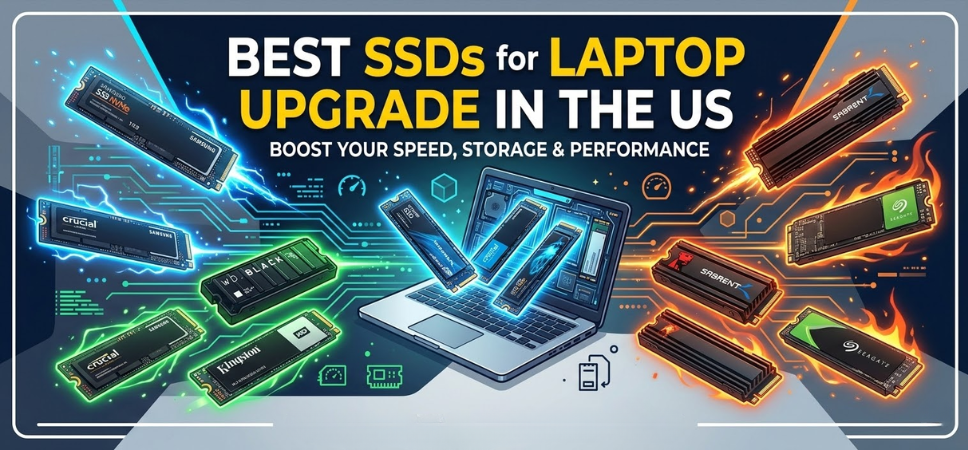
Upgrading a laptop with a high-performance SSD (Solid State Drive) is one of the most effective ways to dramatically improve system speed, reliability, and productivity. Whether you are working with an aging laptop or seeking faster performance for gaming, creative workflows, or professional tasks, choosing the best SSD for laptop upgrade in the US can transform your entire computing experience.
In this comprehensive guide, we explore the top SSDs available in the United States, explain how to select the right drive, compare performance metrics, and provide practical recommendations tailored for various laptop users. From NVMe PCIe Gen4 powerhouses to affordable SATA upgrades, this article covers everything needed to make the best decision.
Why Upgrading to an SSD Is Essential for Laptop Performance
Traditional hard drives (HDDs) rely on spinning disks and mechanical read/write heads, which limit performance and durability. Modern SSDs use flash memory, enabling lightning-fast speeds and greater reliability.
Major Benefits of Laptop SSD Upgrades
-
Faster Boot Times – Boot your laptop in seconds instead of minutes
-
Rapid Application Launch – Programs open instantly
-
Improved Multitasking – Run multiple applications without slowdown
-
Better Durability – SSDs have no moving parts
-
Energy Efficiency – Reduced power consumption improves battery life
-
Silent Operation – No mechanical noise
For laptop users in the US who rely on productivity, content creation, or gaming, upgrading to a modern NVMe SSD can provide up to 10x faster speeds compared to traditional HDDs.
Types of SSDs Compatible With Laptop Upgrades
Before selecting the best SSD, it is important to understand the different SSD interface types used in modern laptops.
1. SATA SSD
-
Maximum speed: ~550 MB/s
-
Compatible with most older laptops
-
Affordable and reliable upgrade option
2. NVMe PCIe Gen3 SSD
-
Speed: Up to 3500 MB/s
-
Common in laptops manufactured after 2018
-
Significant performance improvement over SATA
3. NVMe PCIe Gen4 SSD
-
Speed: Up to 7000+ MB/s
-
Ideal for gaming, editing, and power users
-
Requires Gen4 motherboard compatibility
4. NVMe PCIe Gen5 SSD
-
Speed: 10,000+ MB/s
-
Cutting-edge technology
-
Currently more common in desktops than laptops
Understanding your laptop’s compatibility ensures you choose the best SSD upgrade for maximum performance gains.
Top 10 Best SSDs for Laptop Upgrade in the US (2026)
Below are the best SSD drives available for laptop upgrades, combining performance, reliability, and value.
1. Samsung 990 Pro – Best Overall Laptop SSD
The Samsung 990 Pro stands at the top of the SSD market thanks to its incredible speed and reliability.
Key Features
-
Interface: PCIe 4.0 NVMe
-
Sequential Read Speed: Up to 7450 MB/s
-
Sequential Write Speed: Up to 6900 MB/s
-
Capacity Options: 1TB, 2TB, 4TB
-
Warranty: 5 years
Why It’s the Best
-
Exceptional real-world performance
-
Perfect for gaming laptops and professional workloads
-
Industry-leading endurance
2. WD Black SN850X – Best SSD for Gaming Laptops
The WD Black SN850X is designed for gamers who demand ultra-fast loading times and seamless gameplay.
Highlights
-
PCIe 4.0 NVMe technology
-
Read speeds up to 7300 MB/s
-
Advanced thermal management
-
Ideal for AAA gaming titles
This SSD ensures minimal game loading times and smooth performance.
3. Crucial T500 – Best Performance Value
Crucial’s T500 combines high-end speeds with competitive pricing, making it one of the best value SSD upgrades.
Specifications
-
Read speeds up to 7400 MB/s
-
Write speeds up to 7000 MB/s
-
PCIe Gen4 support
-
Excellent efficiency
It is a great choice for power users seeking performance without overspending.
4. Samsung 980 – Reliable Mid-Range NVMe SSD
The Samsung 980 remains one of the most dependable SSDs for laptop upgrades.
Features
-
PCIe 3.0 NVMe
-
Read speeds up to 3500 MB/s
-
Strong reliability record
-
Ideal for daily productivity laptops
5. WD Blue SN580 – Best Budget NVMe SSD
The WD Blue SN580 is a fantastic entry-level NVMe drive.
Advantages
-
PCIe Gen4 architecture
-
Affordable pricing
-
Efficient power consumption
-
Great for students and casual users
6. Kingston KC3000 – Professional Workstation SSD
For users working with video editing, 3D rendering, or software development, the Kingston KC3000 delivers outstanding performance.
Performance
-
Read speed: 7000 MB/s
-
Write speed: 7000 MB/s
-
High endurance rating
-
Ideal for heavy workloads
7. SK Hynix Platinum P41 – Most Efficient NVMe SSD
This SSD is known for exceptional power efficiency, making it perfect for laptops where battery life matters.
Highlights
-
PCIe Gen4
-
Read speeds up to 7000 MB/s
-
Low heat output
-
High reliability
8. Samsung 870 EVO – Best SATA SSD Upgrade
For older laptops without NVMe slots, the Samsung 870 EVO remains the best SATA upgrade option.
Key Benefits
-
Read speeds up to 560 MB/s
-
Wide compatibility
-
Excellent durability
9. Crucial MX500 – Affordable SATA Upgrade
The Crucial MX500 is a reliable and budget-friendly SATA SSD.
Features
-
560 MB/s read speed
-
Excellent value
-
Trusted brand reliability
10. Sabrent Rocket 4 Plus – Extreme Performance SSD
The Sabrent Rocket 4 Plus is built for users needing maximum storage performance.
Specifications
-
Read speeds up to 7100 MB/s
-
High endurance rating
-
Excellent thermal control
SSD Comparison Table
| SSD Model | Interface | Read Speed | Write Speed | Best For |
|---|---|---|---|---|
| Samsung 990 Pro | PCIe Gen4 | 7450 MB/s | 6900 MB/s | Overall performance |
| WD Black SN850X | PCIe Gen4 | 7300 MB/s | 6600 MB/s | Gaming |
| Crucial T500 | PCIe Gen4 | 7400 MB/s | 7000 MB/s | Best value |
| Samsung 980 | PCIe Gen3 | 3500 MB/s | 3000 MB/s | Daily use |
| WD Blue SN580 | PCIe Gen4 | 4150 MB/s | 4150 MB/s | Budget option |
| Kingston KC3000 | PCIe Gen4 | 7000 MB/s | 7000 MB/s | Workstations |
| SK Hynix P41 | PCIe Gen4 | 7000 MB/s | 6500 MB/s | Efficiency |
| Samsung 870 EVO | SATA | 560 MB/s | 530 MB/s | Older laptops |
| Crucial MX500 | SATA | 560 MB/s | 510 MB/s | Budget SATA |
| Sabrent Rocket 4 Plus | PCIe Gen4 | 7100 MB/s | 6600 MB/s | Extreme speed |
How to Choose the Best SSD for Laptop Upgrade
Selecting the right SSD requires considering several important factors.
1. Compatibility
Check whether your laptop supports SATA or NVMe SSDs.
2. Storage Capacity
Common capacities include:
-
500GB – Basic users
-
1TB – Most laptop owners
-
2TB or more – Creators and gamers
3. Speed Requirements
High-end NVMe SSDs provide dramatic improvements in load times and responsiveness.
4. Endurance Rating
Measured in TBW (Terabytes Written), endurance determines the lifespan of the drive.
5. Brand Reliability
Trusted brands such as Samsung, Western Digital, Crucial, and Kingston consistently deliver high-quality SSDs.
Laptop SSD Upgrade Installation Guide
Upgrading your laptop SSD can be completed within 20–30 minutes.
Basic Installation Steps
-
Backup existing data
-
Power off the laptop
-
Open the laptop back panel
-
Locate the SSD slot
-
Insert the new SSD
-
Secure the drive
-
Reinstall the operating system or clone the old drive
Many SSD manufacturers also provide free cloning software to simplify migration.
SSD vs HDD Performance Comparison
| Feature | SSD | HDD |
|---|---|---|
| Boot Time | 5–10 seconds | 45–90 seconds |
| Speed | Up to 7000 MB/s | ~150 MB/s |
| Durability | High | Lower |
| Noise | Silent | Audible |
| Power Efficiency | Excellent | Moderate |
The difference in performance makes SSDs the preferred storage solution for modern laptops.
Benefits of NVMe SSDs for Modern Laptops
NVMe technology significantly improves data transfer speed by connecting directly to the PCIe interface.
Advantages
-
Ultra-fast data transfer
-
Improved multitasking
-
Reduced latency
-
Enhanced productivity
For power users, NVMe SSD upgrades are essential for unlocking the full potential of modern laptops.
Future of Laptop SSD Technology
The storage industry continues to evolve rapidly.
Emerging technologies include:
-
PCIe Gen5 SSDs
-
Higher capacity NAND flash
-
Improved power efficiency
-
AI-optimized storage controllers
These innovations will continue to push laptop performance to new levels.
FAQs
1. What is the best SSD for upgrading a laptop?
The Samsung 990 Pro is widely considered the best SSD for performance and reliability.
2. Is NVMe better than SATA SSD?
Yes. NVMe SSDs are significantly faster than SATA drives.
3. Can any laptop use an NVMe SSD?
No. Your laptop must have an M.2 NVMe slot.
4. How much storage should I choose?
Most users should choose 1TB for balanced storage and performance.
5. Will upgrading to an SSD improve laptop speed?
Yes. SSD upgrades can increase system responsiveness dramatically.
6. Do SSDs improve gaming performance?
They reduce load times and improve overall gaming experience.
7. Are SSDs durable?
Yes. SSDs are more durable than HDDs because they lack moving parts.
8. How long do SSDs last?
Most SSDs last 5–10 years depending on usage.
9. Can I clone my existing drive?
Yes. Many SSDs include cloning software for easy data transfer.
10. Do SSDs overheat?
High-performance NVMe drives may generate heat, but most include thermal management solutions.
11. Are SATA SSDs still worth buying?
Yes, especially for older laptops without NVMe support.
12. What brands make the best SSDs?
Samsung, Western Digital, Crucial, Kingston, and SK Hynix.
13. Is 512GB enough for a laptop?
For light users, yes. Most users benefit from 1TB or more.
14. Do SSDs affect battery life?
Yes. SSDs typically improve battery efficiency.
15. Can SSD upgrades increase laptop lifespan?
Yes. Faster storage can extend the usefulness of older laptops.
16. What is TBW in SSDs?
TBW means Terabytes Written, indicating endurance.
17. Are external SSDs good alternatives?
They are useful but internal SSD upgrades provide the best performance.
18. What is PCIe Gen4?
A high-speed interface standard used by modern NVMe SSDs.
19. Are Gen5 SSDs necessary?
Currently unnecessary for most laptop users.
20. How long does SSD installation take?
Usually 20–30 minutes.
21. Is 2TB SSD worth it?
Yes for gamers, creators, and heavy storage users.
22. Can SSD upgrades help video editing?
Absolutely. Faster drives improve editing workflows significantly.
23. Do SSDs require maintenance?
No. They are maintenance-free storage devices.
24. Can SSDs fail suddenly?
Failures are rare but possible; regular backups are recommended.
25. Should I upgrade RAM along with SSD?
For best performance, upgrading both RAM and SSD can be beneficial.
For more information and to start using Deonus.com, visit our official website and download the app to stay updated on the best deals and offers. With Deonus.com, you can ensure that every shopping experience is not just an opportunity to shop but an opportunity to save big.