
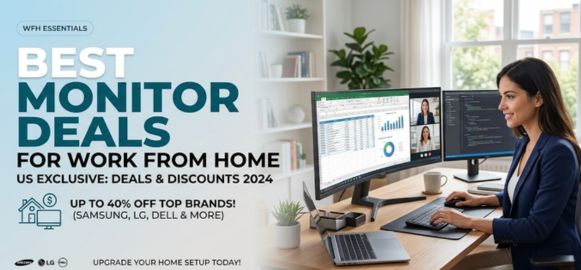
In today’s remote-first world, we understand that a high-quality monitor is no longer a luxury—it’s a necessity. Whether we are managing spreadsheets, designing visuals, coding applications, or attending virtual meetings, the right monitor setup directly impacts productivity, comfort, and efficiency.
This comprehensive guide explores the best monitor deals for work from home, carefully curated to deliver performance, value, and long-term reliability. We break down everything—from display technology to ergonomic features—so we can make the smartest buying decision.
Why Choosing the Right Monitor Matters for Remote Work
A monitor is the centerpiece of any work-from-home setup. Investing in the right one ensures:
-
Reduced eye strain during long hours
-
Improved multitasking efficiency
-
Sharper visuals for accuracy
-
Better posture and ergonomic comfort
A poor monitor leads to fatigue, headaches, and reduced productivity. That’s why selecting a feature-rich, high-performance display is essential.
Top Features to Look for in a Work From Home Monitor
1. Screen Size & Resolution
We recommend:
-
24-inch to 27-inch monitors for general productivity
-
32-inch or ultrawide monitors for multitasking
-
Minimum Full HD (1920x1080) resolution
-
Prefer QHD (2560x1440) or 4K (3840x2160) for sharper clarity
Larger screens paired with higher resolutions offer more workspace and better clarity.
2. Panel Technology (IPS vs VA vs TN)
-
IPS Panels – Best color accuracy & wide viewing angles
-
VA Panels – High contrast ratios, deeper blacks
-
TN Panels – Faster response time but weaker color reproduction
For work-from-home setups, IPS panels are the best choice due to their balanced performance and visual comfort.
3. Refresh Rate & Response Time
Even for work use:
-
60Hz–75Hz is sufficient for most tasks
-
Higher refresh rates (100Hz+) provide smoother scrolling
-
Response time of 5ms or less is ideal
4. Eye Care Technology
We prioritize monitors with:
-
Flicker-free technology
-
Low blue light filters
-
Anti-glare coating
These features ensure long working hours without eye fatigue.
5. Connectivity Options
Ensure your monitor includes:
-
HDMI / DisplayPort
-
USB-C (for modern laptops)
-
Built-in USB hubs
This improves workspace organization and device compatibility.
6. Ergonomics & Adjustability
Look for:
-
Height adjustment
-
Tilt & swivel functionality
-
VESA mount compatibility
Proper ergonomics prevent neck and back strain, improving overall comfort.
Best Monitor Deals for Work From Home (2026 Picks)
1. 24-Inch Budget Productivity Monitor
Why We Recommend It
Perfect for students, freelancers, and basic office tasks, this category delivers excellent value at an affordable price.
Key Benefits
-
Compact size for small desks
-
Energy-efficient performance
-
Great for document work & browsing
Best Use Case
-
Email management
-
Word processing
-
Light multitasking
2. 27-Inch QHD Monitor – The Sweet Spot
Why We Recommend It
This is the ideal balance between price, performance, and productivity.
Key Benefits
-
Crisp QHD resolution
-
Comfortable screen size for multitasking
-
Enhanced detail clarity
Best Use Case
-
Spreadsheet analysis
-
Content writing
-
Office productivity
3. 32-Inch 4K Monitor – Maximum Clarity
Why We Recommend It
Designed for professionals who demand precision and clarity.
Key Benefits
-
Ultra-sharp 4K visuals
-
Ideal for large datasets and detailed work
-
More screen real estate
Best Use Case
-
Data analysis
-
Financial modeling
-
Professional office work
4. Ultrawide Monitor – Multitasking Powerhouse
Why We Recommend It
Replace dual monitors with a single ultrawide display for seamless productivity.
Key Benefits
-
Wide workspace
-
Split-screen efficiency
-
Immersive workflow
Best Use Case
-
Multitasking professionals
-
Developers & editors
-
Stock traders
5. USB-C Monitors – Modern Workstations
Why We Recommend It
Perfect for laptop users, offering single-cable connectivity.
Key Benefits
-
Charge your laptop via monitor
-
Cleaner desk setup
-
Faster data transfer
Best Use Case
-
MacBook users
-
Remote professionals
-
Minimalist setups
How to Choose the Best Monitor for Your Needs
For Office Work
Choose:
-
24–27 inch
-
Full HD or QHD
-
IPS panel
For Creative Work
Choose:
-
27–32 inch
-
QHD or 4K
-
High color accuracy
For Coding & Multitasking
Choose:
-
Ultrawide monitors
-
High resolution
-
Split-screen support
Best Monitor Buying Tips (2026 Edition)
-
Always prioritize display quality over brand name
-
Choose ergonomic stands for long-term comfort
-
Ensure future-proof connectivity (USB-C)
-
Avoid extremely cheap monitors with poor panels
-
Invest in eye-care features for health benefits
Monitor Setup Tips for Work From Home
Optimize Desk Placement
-
Keep monitor at eye level
-
Maintain arm’s length distance
Lighting Setup
-
Avoid glare from windows
-
Use ambient lighting
Dual Monitor Setup
-
Use identical screen sizes
-
Align displays for seamless viewing
Pros and Cons of Different Monitor Types
| Monitor Type | Pros | Cons |
|---|---|---|
| 24-inch | Affordable, compact | Limited workspace |
| 27-inch | Balanced performance | Slightly higher cost |
| 32-inch | Large screen, immersive | Requires more desk space |
| Ultrawide | Best multitasking | Expensive |
| 4K Monitors | Ultra-sharp visuals | Higher system requirements |
Common Mistakes to Avoid
-
Buying based only on price
-
Ignoring resolution and panel type
-
Overlooking ergonomics
-
Choosing incorrect screen size for desk space
-
Not checking port compatibility
Future Trends in Work From Home Monitors
-
AI-powered display adjustments
-
Higher refresh rate productivity monitors
-
Improved eye-care technologies
-
OLED panels entering mainstream use
FAQs
1. What is the best monitor size for working from home?
-
24–27 inches is ideal for most users
2. Is 4K necessary for office work?
-
Not mandatory but improves clarity
3. IPS vs VA – which is better?
-
IPS is better for productivity
4. Do I need a curved monitor?
-
Helpful for ultrawide setups
5. Is 60Hz enough for work?
-
Yes, for most office tasks
6. Can I use a TV as a monitor?
-
Possible, but not recommended
7. What resolution is best?
-
QHD offers the best balance
8. Are ultrawide monitors worth it?
-
Yes, for multitasking
9. Do monitors affect eye health?
-
Yes, choose eye-care features
10. What is response time?
-
Speed of pixel change
11. Should I get dual monitors?
-
Yes, for increased productivity
12. Is USB-C necessary?
-
Highly recommended for laptops
13. What is refresh rate?
-
Screen update frequency
14. Are cheap monitors bad?
-
Often lack quality panels
15. Do I need HDR?
-
Not essential for office work
16. What panel is best for design?
-
IPS panels
17. Is 32-inch too big?
-
Depends on desk space
18. Can monitors improve productivity?
-
Significantly
19. Are curved monitors good?
-
Yes, for immersion
20. What is VESA mount?
-
Wall/arm mounting standard
21. Should I choose matte or glossy?
-
Matte reduces glare
22. How long do monitors last?
-
5–10 years
23. What brightness is ideal?
-
250–350 nits
24. Do I need speakers in a monitor?
-
Optional
25. Best monitor for coding?
-
Ultrawide or 27-inch QHD
For more information and to start using Deonus.com, visit our official website and download the app to stay updated on the best deals and offers. With Deonus.com, you can ensure that every shopping experience is not just an opportunity to shop but an opportunity to save big